
Assessments Overview
Assessments let you test candidates' real skills (writing, reasoning, coding, even live AI conversations) and have Hivemind grade every answer automatically. This page tours the assessment library, explains how assessments slot into your pipelines, and covers how AI evaluation and credits work.
The assessment library
Open Assessments in the sidebar to reach My Assessments, the home of every assessment in your workspace. A toggle at the top switches between two views:
- Assessments: a table of your assessments with Title, Difficulty (Easy / Medium / Hard), Time Limit, Questions, candidate counts (Direct, Pipeline, Total), Avg Score, and Created date. Search, filter, and sort to find anything fast.
- Analytics: workspace-wide stats such as Total Assessments, Total Questions, Total Candidates, and Average Score, plus usage and question insights.
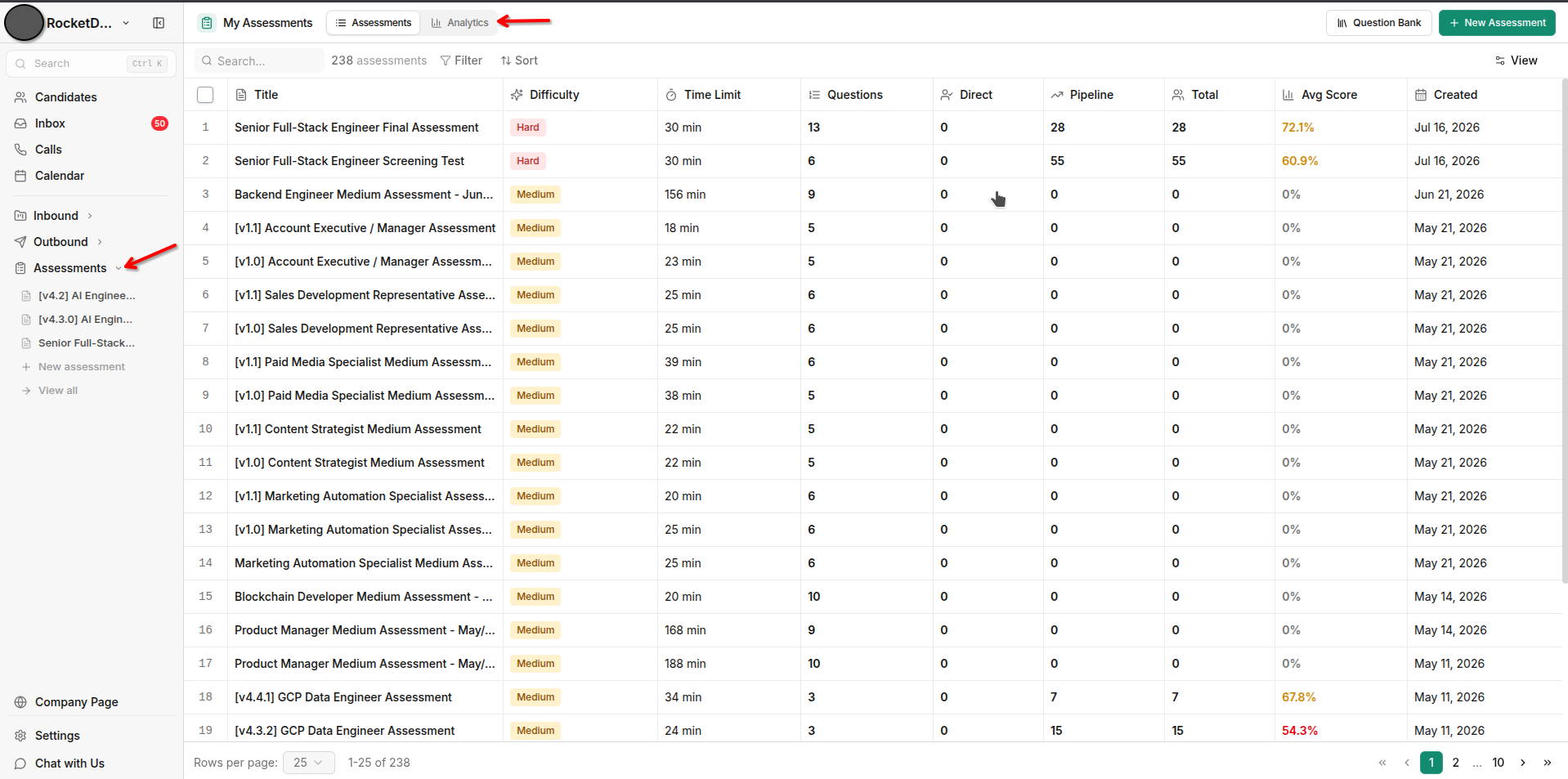
From the header you can open the Question Bank or click New Assessment to build one. See Creating & Editing Assessments. Each row's actions include View Details, View Candidates, Share Link, Edit Assessment, Duplicate, and Delete.
Share Link copies a public URL you can send to anyone. Candidates who take the assessment this way appear with the Direct source, while candidates who reach it through a pipeline stage show as Pipeline.
An assessment can only be deleted while it has zero candidates. Once anyone has taken it, deletion is blocked to protect their results.
How assessments plug into pipelines
Inside the pipeline builder, drag in the Automated Assessment node. Its Assessment Configuration panel has just two fields: a Node Name and an Assessment picker (Search for an assessment, or use the Create one link to build a fresh one). See the Pipeline Nodes Reference for where the node fits among the other stages.
When a candidate reaches the stage, Hivemind sends them the assessment, waits for their submission, grades it, and stores the score on the candidate. The node itself has no fixed pass mark. You decide what happens next by adding a decision node after it that branches on the assessment score (for example, score ≥ 70 advances to interview, otherwise rejects). The panel also offers a one-time Compose Email nudge for candidates who haven't finished yet.
AI evaluation, in a nutshell
Every answer is scored from 0–100. Multiple-choice answers are graded instantly against the correct option; written, video, and coding answers are evaluated by AI against each question's rubric, complete with a written justification you can review. The overall score is a weighted average across all questions, shown as a percentage, and each candidate is ranked against everyone else who completed the same assessment (for example, Top 10%). Dig into scores, justifications, and integrity signals in Reviewing Results.
Credits
Each candidate evaluation costs 300 credits, deducted when the candidate reaches the assessment (retakes are charged again). If your balance runs dry, candidates aren't lost. They simply wait, and a Candidates Waiting prompt appears so you can either buy credits or connect your own OpenAI API key and pay OpenAI directly instead of using platform credits. Full details in Credits & Billing.
What's next
- Pick the right format in Assessment Types
- Build your first one in Creating & Editing Assessments
- Read scores and integrity signals in Reviewing Results
- See how stages fit together in the Pipeline Nodes Reference
Updated about 2 months ago